The AI you use every day doesn’t look like AI
When people hear “AI”, they picture a chat window: you type a question, a machine types back. It is the version that gets the headlines, and for most of us it is still a novelty we open now and then.
The AI that actually changed your week looks nothing like that. It has no logo and no name, and you never signed up for it. It lives inside tools you were already using:
Type “receipt” or “passport” into the search box, and your phone finds the picture by what is in it, not by its file name.
Spam is gone before you see it, and your sentences get finished before you type them.
The arrival time is right to the minute, because the route is replanned around traffic while you drive.
None of this asked you to learn anything. The tool stayed the same; it just started doing more of the work on its own. That is the pattern worth noticing, because it is about to reach the most boring folder on your computer.
Google Drive has been quietly learning to read
If you use Google Drive, the change has already begun, and you may have walked past it:
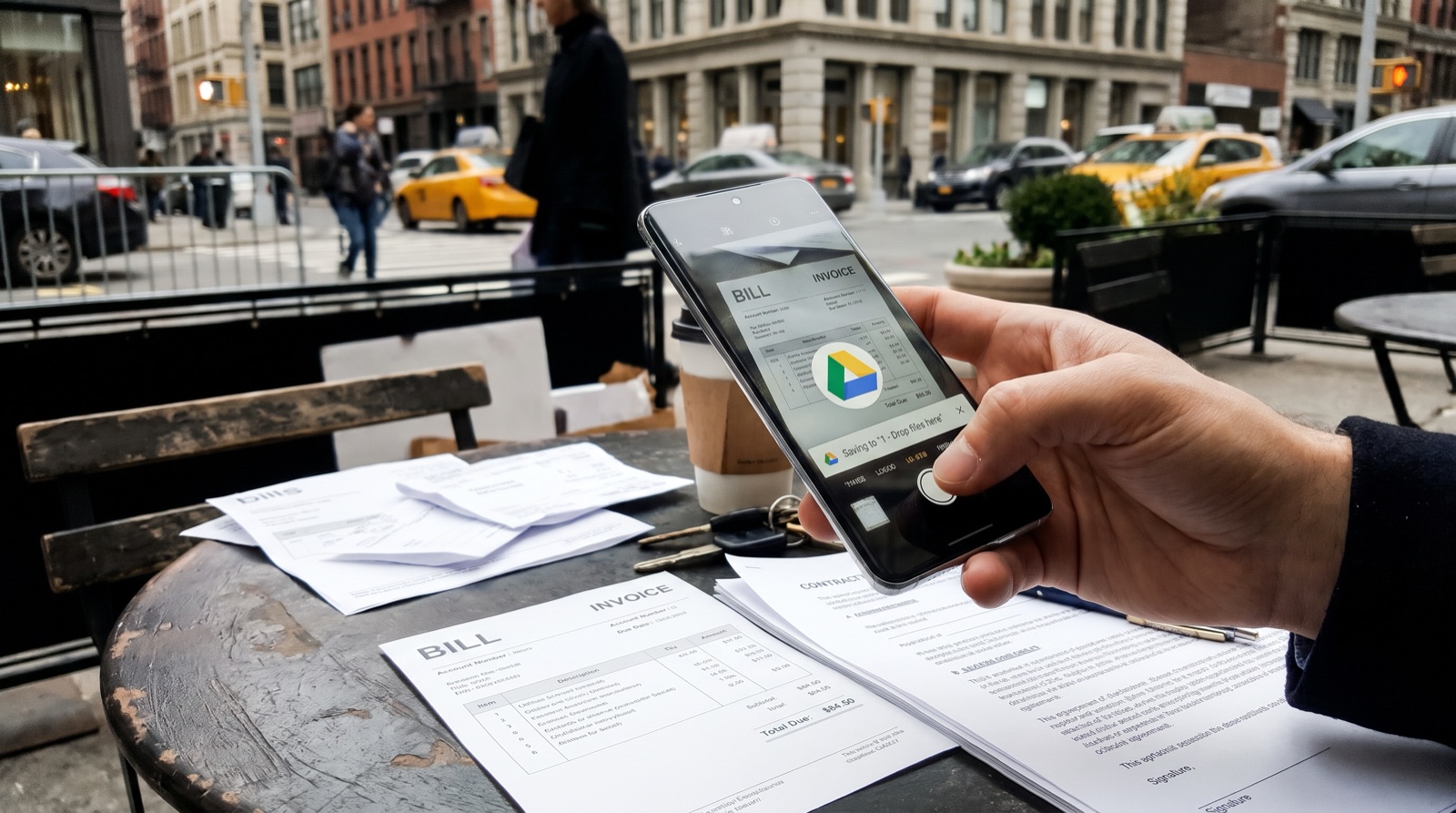
- Your phone is a scanner. The Drive app has a camera button. Point it at a piece of paper and it straightens, crops and saves it as a PDF.
- Search looks inside files. Type a word, and Drive finds it in a scanned PDF or a photo of a document, not just in titles.
- Scans become text. Open a scanned PDF with Google Docs and the words come out editable. (We cover the exact steps in this guide to Drive’s built-in OCR.)
Useful, but it is still reading the way a photocopier reads: it sees the letters, not the meaning. It can tell you that a page contains the word “Total”. It cannot tell you that the number next to it is the amount you owe, that the date above it is the invoice date, or that this supplier is the same one as last month.
That next step, from seeing letters to understanding the document, is what the newer AI models are good at. And it is the step that turns a folder from a place where things are stored into a place where things get done.
What changes when a folder understands what is in it
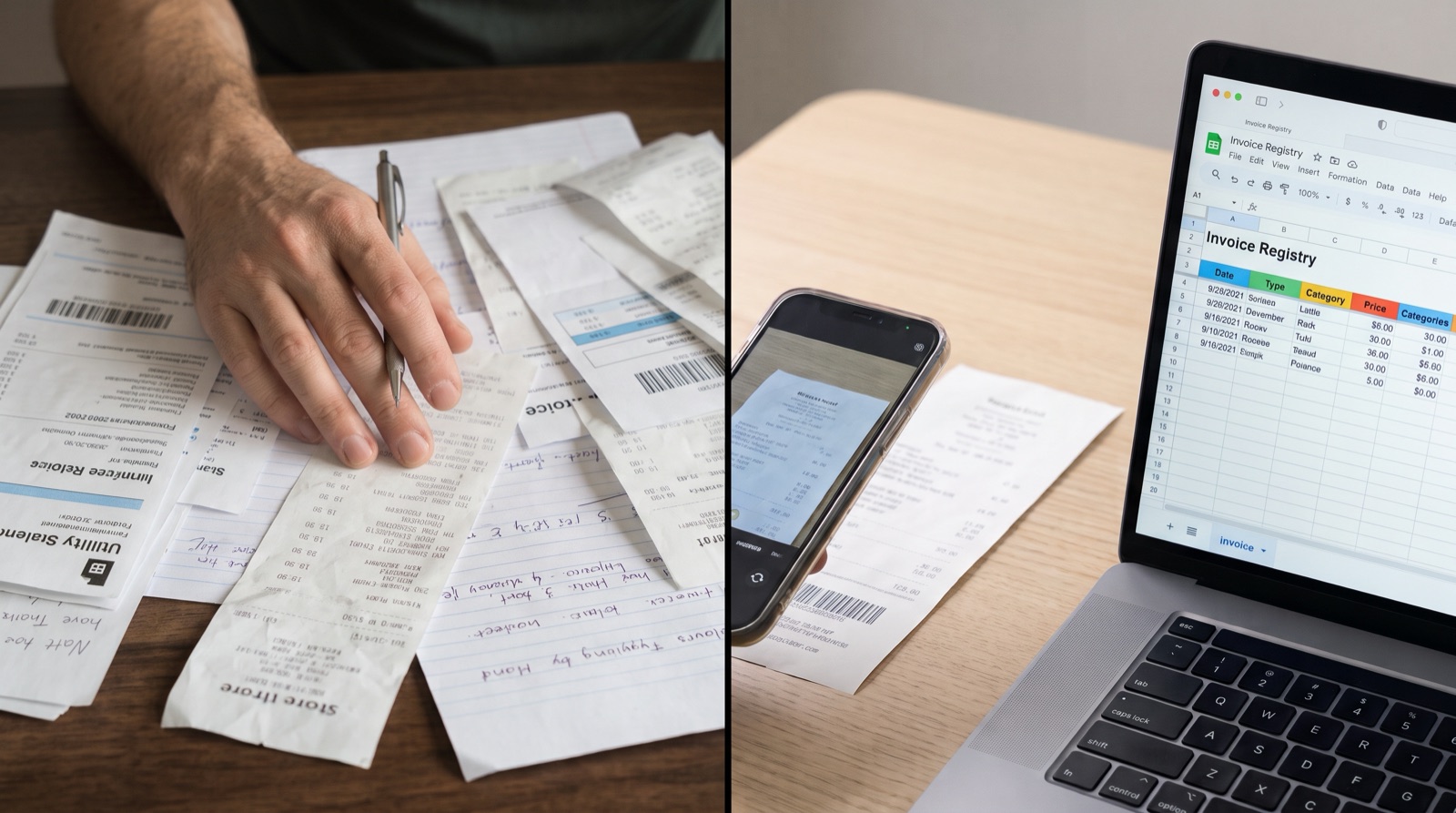
Take the most universal paperwork there is: invoices and receipts. Every freelancer, landlord, small shop and side business has a pile of them, and someone has to type the vendor, the number, the date and the amounts into a spreadsheet so that the accountant, or the tax return, can use them.
Here is how that job looks when the folder does the reading. QuoteDrive is an independent tool that connects to your Google account and creates three folders and one sheet in your Drive. The routine after that is as short as a routine can be:
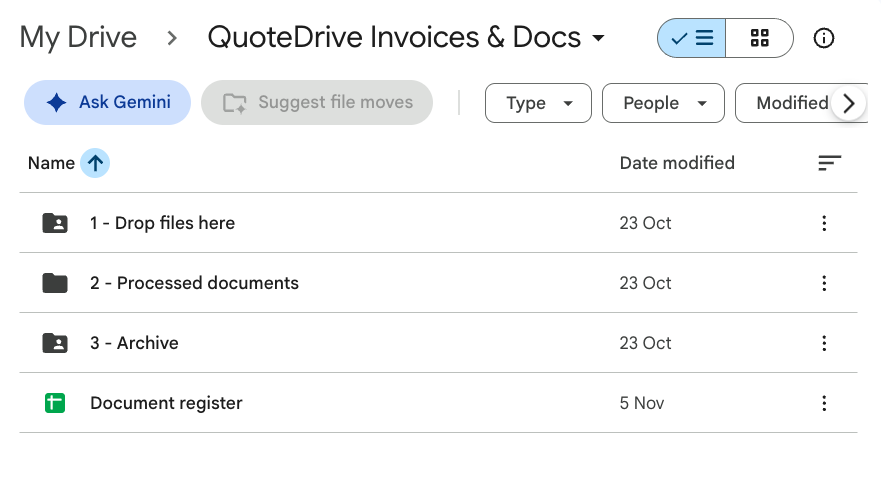
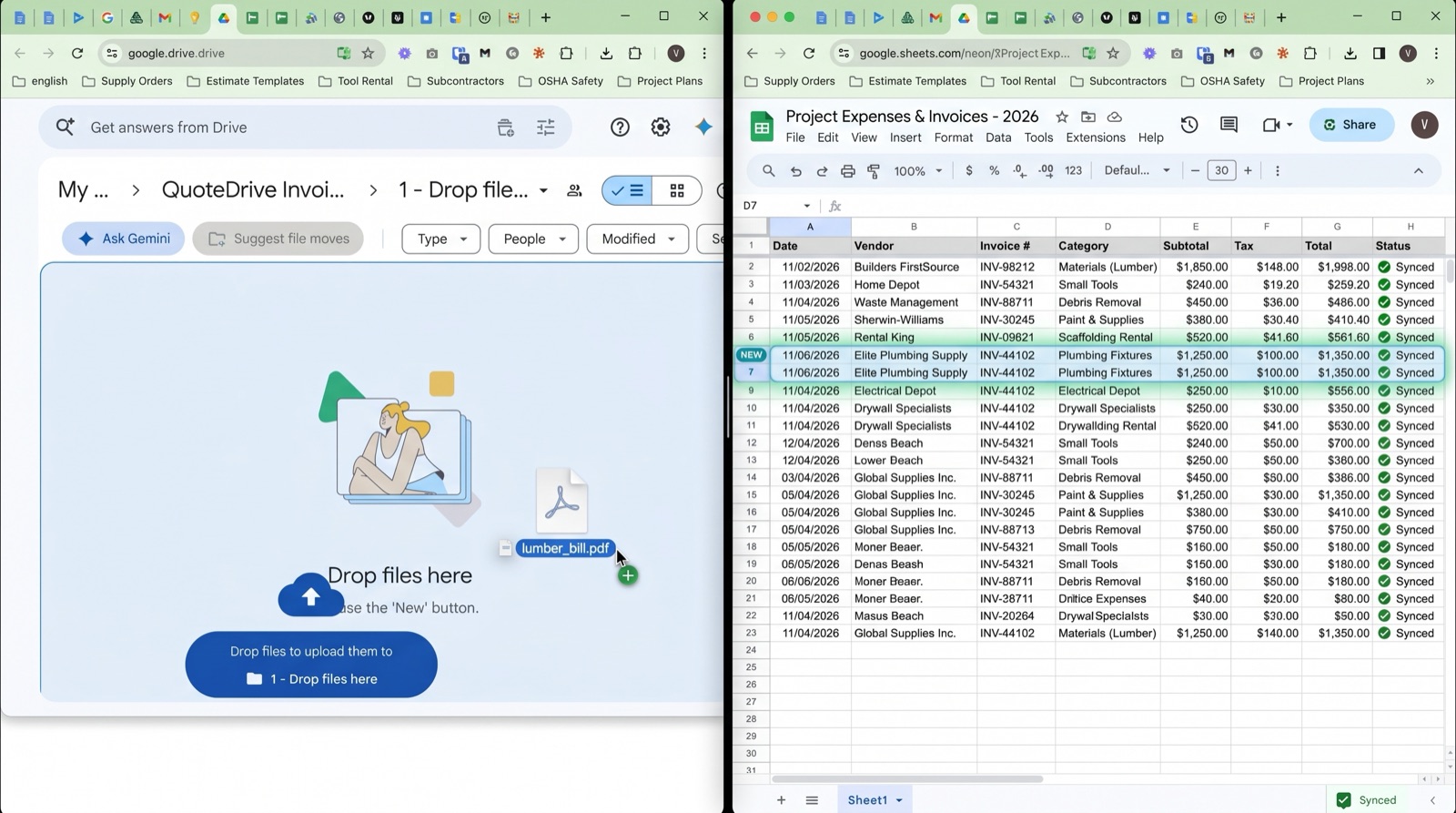
- You drop a file into “1 - Drop files here”. A PDF from your desktop, a scan from the Drive app, or an email you forward.
- It is read in the background. No button, no tab to keep open. Within a few minutes the AI finds the vendor, the invoice or receipt number, the issue and due dates, and the net, tax and total amounts.
- It is filed. A new row appears in your register sheet, the document gets its own sheet with the details, and the original moves to “3 - Archive” so it is never lost or read twice.
What is new here is not the technology. It is where it lives: in a folder you already know how to use.
There is no new app with its own login, no dashboard to learn, no import and export between systems. The interface is a folder, the output is a Google Sheet, and both belong to you. If you stop using the tool tomorrow, nothing disappears.
AI that lives in a folder, not in another app.
Sign in with Google and the folders appear in your Drive. Drop in one invoice and watch the row show up in your sheet. No setup, no contract, stop any time.
Try QuoteDriveHow “AI reads a document” actually works, without the magic
It is worth knowing what happens in those few minutes, because it explains both why it works and where it can slip.
The model behind it has seen millions of invoices, receipts and forms. It looks at your page much as you would: it finds the block that looks like a vendor’s header, the line that looks like a date, the column that adds up to the total. Then it writes those pieces into named fields (vendor, number, date, net, tax, total) instead of a wall of text. Three things follow from that:
- It copes with real life. A photo taken at an angle, a crumpled fuel receipt, an invoice in another language or currency: the model has seen all of these before.
- It can be wrong. A faint 7 can become a 1; a payment date can be mistaken for the invoice date. So the sheet is yours to correct, and the original file is always kept next to it.
- It does the first draft; you do the glance. Checking a row takes seconds. Typing it took minutes. That difference, multiplied by every document of the year, is the whole point.
Three small things to try this week
You do not need a project or a budget to see this for yourself. Each of these takes a minute:
- Search for a word, not a file. In Google Drive, type a word you know is printed inside an old scanned PDF. Watch it come up even though the file name says nothing of the kind.
- Scan instead of keep. The next time you get a paper receipt, open the Drive app, tap the camera, and let the phone straighten and save it. Then throw the paper away.
- Give one folder a job. Sign in to QuoteDrive with Google and drop this month’s invoices into “1 - Drop files here”. Open the register sheet a few minutes later.
The first two show you what Drive already does. The third shows you what a folder does once it understands the paper you put in it.
Why this matters beyond paperwork
For twenty years, software asked you to come to it: open the program, learn the menus, enter the data the way it wants. AI is reversing the direction. The tool comes to where you already are (your photos, your inbox, your map, your Drive) and takes over the part of the job that was only ever typing.
For a small business this closes a gap that used to be expensive. Between “do it myself in a spreadsheet” and “pay for accounting software and learn it” there is now a third option, and it costs about as much as a coffee a month: keep your spreadsheet, keep your Drive, and let the folder do the typing.
What QuoteDrive can and can’t see
The narrowest Google permission. QuoteDrive can only access the folders and files it creates, never the rest of your Drive.
Your originals are kept. Nothing is deleted. After reading, the original file moves to “3 - Archive” in your own Drive.
Built and supported in the EU. QuoteDrive works under EU law, including the GDPR.
The details are in the QuoteDrive privacy policy.
See it on one invoice
The quickest way to understand what a folder can do now is to give it one document. Sign in with Google, drop in an invoice you have on hand, and open the register sheet a few minutes later.
You pay only for what you process, €0.08 per invoice on average (excl. VAT), with free credits every month and no contract.
No credit card required to try. QuoteDrive is an independent product and is not made or endorsed by Google. Google Drive, Google Docs and Google Sheets are trademarks of Google LLC.