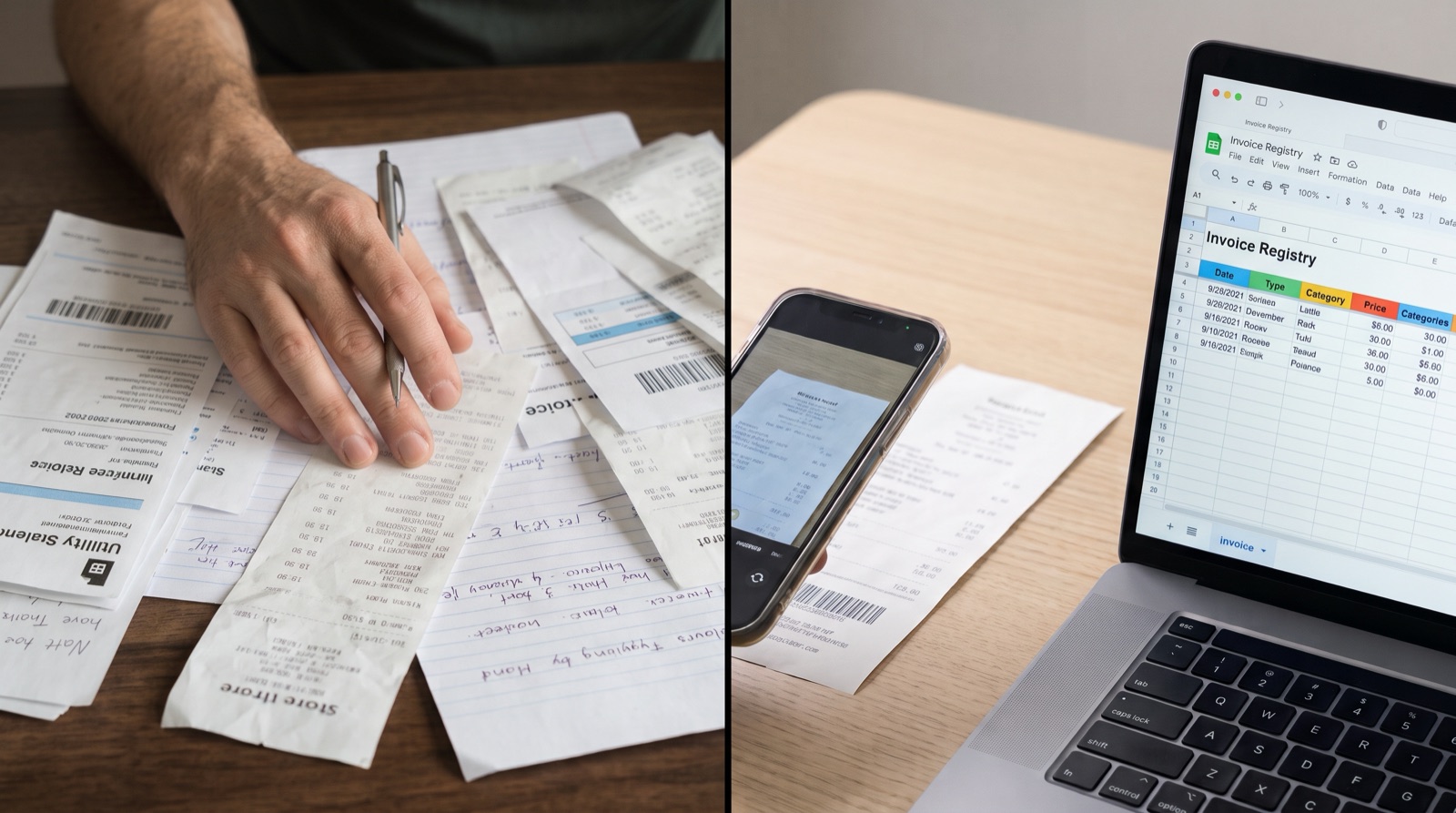
Why Google Drive and Sheets are enough for the expense side of your books
For expenses, a small business needs three things: a place where every invoice and receipt lands, a way to read the numbers off those documents, and one sheet that shows what was spent, when and with whom.
Google Drive and Google Sheets already do two of the three. Drive stores the files, scans receipts from your phone and even reads text out of a PDF. Sheets is the expense tracker. The missing piece is the typing in between, and that is the part this guide removes.
This guide covers that expense side: vendor invoices and receipts. Your own sales invoices, your bank and payroll stay where they are today.
1. How to OCR a PDF or photo in Google Drive, for free
Google Drive has a text-recognition (OCR) feature hidden in plain sight. It turns a scanned PDF or a photo of a receipt into editable text, and it costs nothing:
- Upload the PDF or image to Google Drive. From a phone, open the Drive app, tap + and choose Scan to photograph a receipt straight into a folder.
- Right-click the file (or tap the three dots) and choose Open with → Google Docs.
- Drive creates a new Google Doc: the image on top, the recognized text underneath. You can now search, copy and edit it.
It works best on clear, upright scans with ordinary fonts. Google’s limits: a file of up to 2 MB, with text at least 10 pixels high. Handwriting and faded thermal receipts are hit and miss.
What Drive’s OCR can’t do
The result is a wall of text, not data. The vendor name, the date, the invoice number, the net amount, the tax and the total are all in there somewhere, but Google Docs does not know which is which, and it does not keep table columns. To get a line in your expense tracker, you still read the Doc and type the values into Sheets by hand. For one receipt that is fine. For forty a month it is the same job you were trying to escape.
That is the gap an AI document reader fills: it reads the same PDF or photo and writes fields (vendor, date, number, net, tax, total) into a row of your sheet, instead of text into a Doc. Section 2 shows what that looks like, and QuoteDrive does it from a Drive folder.
2. An expense tracker in Google Sheets that fills itself
Every “expense tracker Google Sheets” template looks about the same, and that is a good thing: the columns below are all an accountant needs. Make a sheet with one row per document and these columns:
- Date (the invoice date, not the day you paid)
- Vendor
- Invoice or receipt number
- Net amount, tax and total
- Link to the file in Drive
- Category (fuel, software, meals, office…), the one column you fill in yourself
A pivot table on Category and Month, and you have a monthly expense report. Share the sheet with your accountant and they can read it, filter it and export it without asking you for anything.
Make the rows appear on their own
The tracker is only as good as the discipline of filling it in, and that is where most spreadsheets die by March. The fix is to stop filling it in yourself. QuoteDrive connects to your Google account, keeps a register sheet in your Drive with the vendor, number, dates, net, tax, total and a link to the file, and adds a row for every document you drop into one folder. Category stays yours: add the column at the end of the register and fill it in.
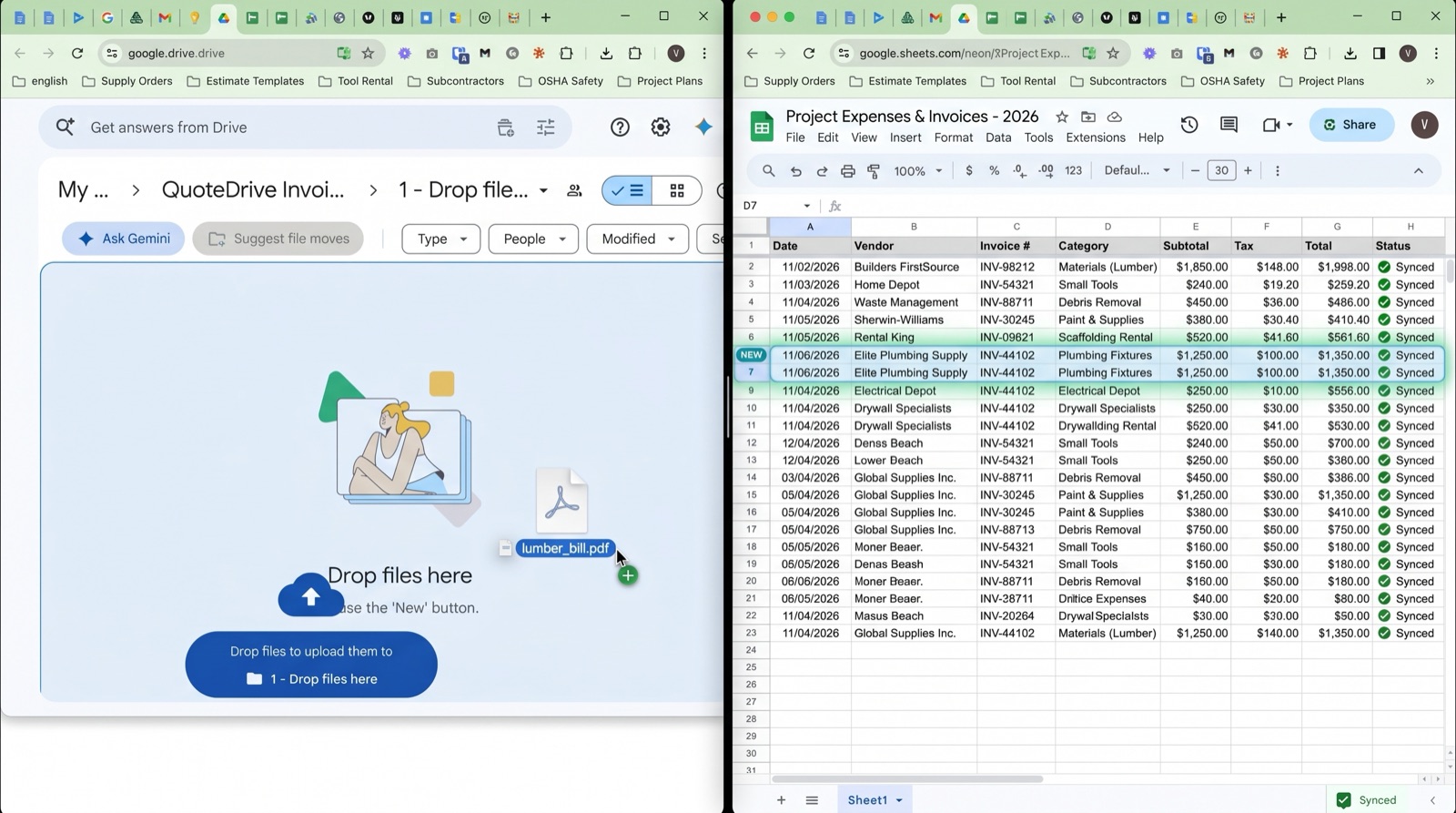
- Scan a receipt with the Drive app, forward an email invoice, or drag in a PDF. The file goes into “1 - Drop files here”.
- Within a few minutes the AI reads the vendor, number, dates, net, tax and total.
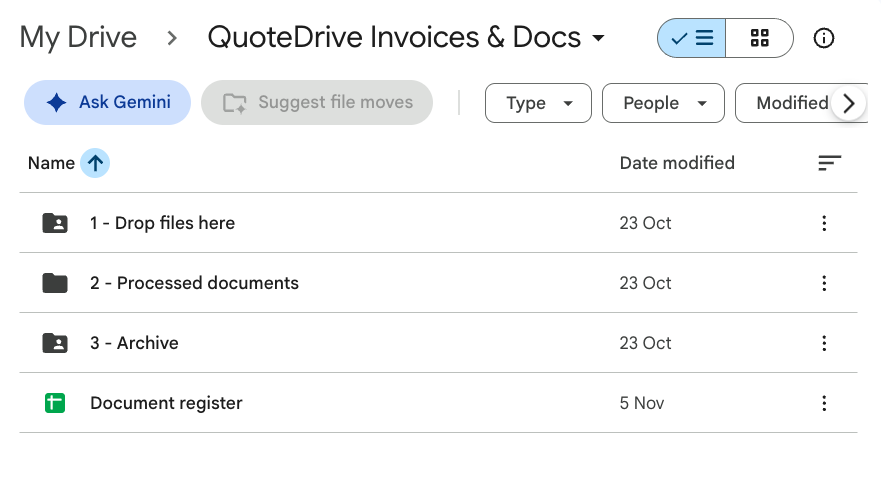
- The register sheet gets a new row, each document gets its own sheet sorted by month, and the original file moves to “3 - Archive”.
AI can misread a value, so check the figures before you rely on them. You fix a row in the sheet like any other cell, and the original file is always kept next to it.
Your expense tracker, filled in from a Drive folder.
Sign in with Google and your folders are created in your Drive; the register appears with the first document. No setup, no contract; stop any time and everything stays yours.
Try QuoteDrive3. Expense bookkeeping for a small business without accounting software
With the files in Drive and the numbers in Sheets, the books of a small business come down to a routine. This is the whole system:
One folder, one sheet, one year
- Everything lands in one place. Vendor invoices from email, fuel and lunch receipts from your phone, subscription invoices from web portals: all into the same folder. No sorting at the moment of capture.
- The sheet is the ledger. One row per document in the register sheet, with category and month. Your bank statement is reconciled against it: every card payment should have a row.
- Keep the originals. In the US, tax records are generally kept for three years after the return is filed. A Drive archive sorted by month satisfies that with no shoebox.
The weekly five minutes
- Open the register sheet and scan the new rows: is the vendor right, does the total match the card charge?
- Fill in the category where it is missing.
- Add a Paid column of your own at the end of the register and tick it off. Unpaid rows are your to-do list for the week.
Month end and tax time
- Monthly: a pivot by category is your expense report. Share the sheet link with whoever does your taxes.
- Year end: the sheet already is the list of deductible expenses, and every row links to its receipt. Nothing to reconstruct from bank statements.
- When you outgrow it: QuickBooks, Xero and most accounting programs import a spreadsheet. You lose nothing by starting here.

What QuoteDrive can and can’t see
The narrowest Google permission. QuoteDrive can only access the folders and files it creates, never the rest of your Drive.
Your originals are kept. Nothing is deleted. After reading, the original file moves to “3 - Archive” in your own Drive.
Built and supported in the EU. QuoteDrive works under EU law, including the GDPR.
The details are in the QuoteDrive privacy policy.
Start with this month’s receipts
You do not have to move anything or learn a new program. Sign in with Google, drop in the receipts and invoices you already have, and watch the register sheet build itself.
You pay only for what you process, €0.08 per invoice on average (excl. VAT), with free credits every month and no contract.
No credit card required to try. QuoteDrive is an independent product and is not made or endorsed by Google. Google Drive, Google Docs and Google Sheets are trademarks of Google LLC.